
The Complete Guide to Conversions in Google Analytics
A guide that goes from installing conversion tags using the main methods, all the way to complex topics like conversion attribution models.


A guide that goes from installing conversion tags using the main methods, all the way to complex topics like conversion attribution models.
I want you to leave this page knowing everything I know about Google Analytics conversions.
This is a complete guide, going from installing conversion tags using the main methods, all the way to complex topics like conversion attribution models.
If you already have conversions set up on your site and want to know how to use them like a pro, click here to jump to that part of the post.
I also threw in a bonus at the end, so you can use conversions at 101% efficiency.
Contents
- How to pick the best method
- Conversions via PageView
- Conversions via Events
- Sending events with Google Tag Manager
- Sending events with WordPress Plugins
- Sending events with JavaScript
3.Importing sales data into Google Analytics
4.How to use Goal reports like a pro
- Reverse Goal Path
- Multi-Channel Funnels
- Assisted Conversions
- Most common Conversion Paths
- Attribution Models
Why so much emphasis on conversions?
BECAUSE CONVERSIONS ARE THE MOST IMPORTANT PART OF WEB ANALYTICS
and also….
THE MOST EASILY IGNORED!
I've seen cases of people investing thousands of reais in AdWords without measuring conversions. 😠😠😠
If that's the plan, you might as well just burn your money.

If you're running any kind of online campaign, producing any kind of content… you need to measure your conversions.
Let me be even bolder: if you have a website,
you need to measure conversions.
If you know me in real life, just know this is the moment I'd be red in the face.. Worked up. Emphatic.
-(Me) MEASURE THE DAMN CONVERSIONS!
-(You) Ok, you lunatic..
-But, what are conversions?
What are Conversions?
A conversion is an action, on your site or not, that matters to you.
For me, on this site, it's signups to my email list:
If you liked this post, you're probably interested in the topics I write (and read) about.
I share a new post every Monday, along with interesting articles and books.
Give it a try and see if you like it:
I work with several companies at Traktor, and each one measures different conversions.
For Lead Generation businesses, common conversions are:
- Leads signing up through a form
- Phone Calls (You can measure calls like this)
If you work with e-commerce, you can measure conversions like:
- Added an item to the cart
- Applied x Discount code
- Bought a product
Depending on the kind of funnel you have (high touch vs low touch), you can record sales conversions in SaaS and Lead Gen too.
You can also measure content conversions:
- Lead magnet downloads (top-of-funnel conversions)
- Email list signups
- Video views on your site
In short: figure out which actions matter to you, and measure them as conversions
So far, I hope I've explained what conversions are. But I haven't given you a single reason to believe they're that important.
Why Conversions matter
Google Analytics loses half its usefulness if you don't measure conversions.
Without them, you don't get access to the Conversion reports. They tell you:
- which channels drive the most direct sales
- which channels drive the most indirect sales
- how long someone takes to buy on your site
- how many times a user visits your site before a sale
That alone is more than enough reason to care about them, but
If you're putting money into paid media
AdWords, Facebook, Instagram or Twitter
Conversions become 10x more important.
Because they're what feed those platforms' artificial intelligence algorithms,
finding your ideal customer at the lowest possible CPC.
Measuring conversions in these situations can make your ROI grow explosively.
To be clear: Google Analytics conversions are not the same thing as conversions in AdWords, Facebook and Twitter.
You can even integrate Google Ads and Google Analytics so they measure the same conversions.
The definition stays the same - a conversion is an action, on your site or not, that matters to you.
But Facebook and Twitter do this differently, with other trackers.
I plan to write everything I know about the subject for each of these platforms.
Until I get around to it, I'll leave you with the official guides from:
How to install Google Analytics Conversion Tracking
In the simplest terms possible, you should choose the best tracking method.
Then, you implement it using:
- Google Tag Manager (my favorite)
- WordPress Plugins
- JavaScript
- Importing sales data
How to pick the best tracking method:
It depends on your conversion.
Remember:
Uma conversão é uma ação, no seu site ou não, que é importante para você.
In this guide I'll cover the most common tracking methods.
If I missed something, send me an @ on Twitter or an email and let's talk.
Conversions via PageView:
This is the easiest method to implement, it fits most cases, and it's the only one you can set up entirely inside Analytics.
You should probably pick this method for cases like:
- Leads signing up through a form
- Lead magnet downloads (top-of-funnel conversions)
- Email list signups
It works like this: when the user lands on a certain URL, a conversion is counted.
You could count a Lead conversion, for example, by redirecting your user to a page after they complete a form.
This conversion can be set up straight from Google Analytics, following these steps:
Step by step to Set Up a Pageview Conversion in Google Analytics
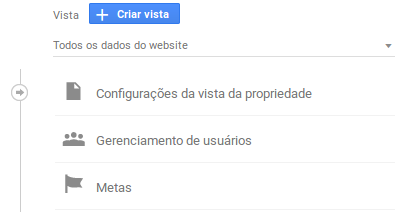
Go to Admin

In the third column, under View Settings, click Goals
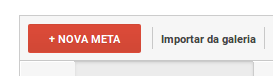
Click new goal:
In Goal settings, you'll choose:
A goal template, or a custom goal.
If there's a template that describes your action exactly, pick it.
If not, go with custom.
Then, in Goal Description:
Pick an easy, descriptive name for your goal. In my case: Lead.
Choose the goal type as destination
In goal details:

Choose begins with and your page's URL, ONLY WHAT COMES AFTER THE SLASHES, with no trailing slash.
For example: this page is
https://www.adamante.com.br/code/conversao-google-analytics/
It would look like:
code/conversao-google-analytics
Don't fill in the optional values, and save. (Unless you've calculated the value of a Lead — in that case, put it in Value)
Done: you're converting

Conversions via Events:
You can use Analytics' Event tools to record conversions.
They're very useful for cases where you're not on a traditional web page.
It works with Apps and dynamic pages where pageviews are virtual, driven by JavaScript
(all the frameworks: jQuery, VueJs, React, Angular and EmberJs).
You can also use this to record video view conversions.
Or record engagement with some feature of your site: I use it here on my WhatsApp button Generator.
Events should be useful for cases like:
- Added an item to the cart
- Applied x Discount code
- Bought a product
- Video views on your site
- Engaged with dynamic content
To do this you need to:
- Set up an event in Analytics
- Send the event.
(How to send events through: Google Tag Manager, WordPress Plugins, JavaScript)
Setting Up Event Goals in Google Analytics
You can follow the instructions on how to create a goal in Google Analytics up to the part where we select the goal type.
Select the Event goal type and configure it with something like:
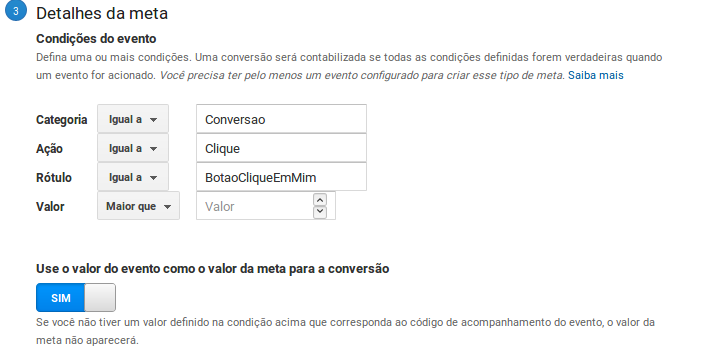
Remember, you're the one who “makes up” the categories, actions and labels. We'll send them through custom events in just a bit. Don't worry too much about what you call them at first, just make sure it's something consistent and that it's recording all the information you need to know.
Sending Events with Google Tag Manager
Google Tag Manager is a great solution for managing your site's trackers.
You can also record events using it.
As an example, I'll explain how to record a button click as an event.
Going back to basic HTML, a button would be marked up like this:
<button id="clique-em-mim">Clique em mim</button>
If you use Bootstrap or some other CSS Framework, it could also be something like:
<a id="botao-clique-em-mim" class="btn btn-primary">Clique em mim</a>
To record an event with Google Tag Manager, you need to know the button's ID.
In both cases, the ID is “botao-clique-em-mim”.
To find out your button's ID, you can right-click the element and choose inspect element.
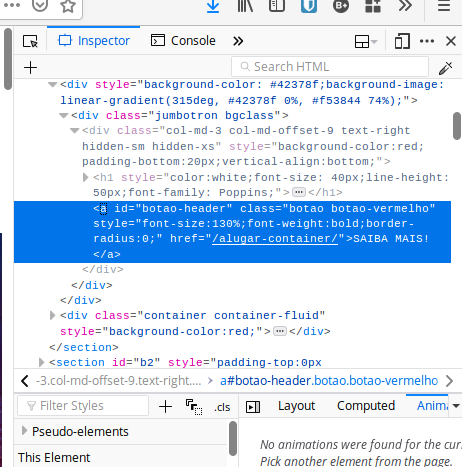
A sidebar will open, with a node highlighted in blue. Whatever is between ID=“” is your ID. In this case, the ID is botao-header.
With that in hand, let's head to Google Tag Manager.
If you haven't installed it yet, you can follow this Google tutorial that shows you how.
After that, we start everything by creating a trigger.
In the right-hand side menu, click Triggers, then New.
Give the Trigger a name, something like “Clicked the Click Me Button”.
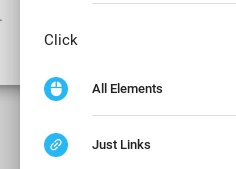
Click the central block, Trigger Configuration, and select Click - All elements
In the central block select This Trigger fires on Some clicks
Select Click ID, equals, your ID.

Save everything and your trigger is ready :)
Now, let's create a Tag.
In the Side Menu, go to Tags and click new.
Give the Tag a name. For us: **Analytics Conversion - Click Me Button”
Choose “Google Analytics - Universal Analytics”
In the first option, set Event.
Set the Category, Action and Label that you chose in Google Analytics.
You can ignore the other fields, but don't forget to select the Google Analytics setting you created when you installed the tag manager.
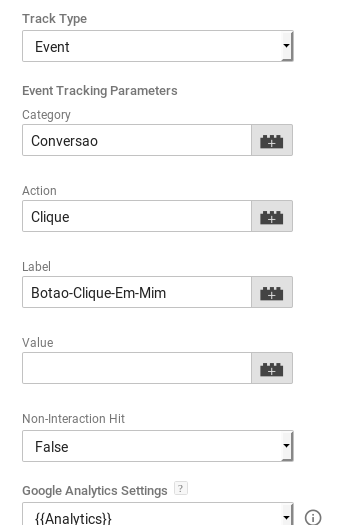
Save and scroll down the configuration until you reach Trigger.
Select the Trigger we just created, and save.
Your event is created! Together with the analytics conversion setup, you should now be recording conversions.
Sending Events with WordPress Plugins
You can use WP Google Analytics Events for that.
It supports Scroll Events and Click Events - you can use the ID like I explained above to record a click event.
I really don't recommend recording events through a WordPress plugin. I know it always looks like the easiest solution, but with every plugin installed in WP, you end up sacrificing a bit of the platform's performance, on top of exposing yourself to security vulnerabilities.
The best solution ends up being Tag Manager, which makes it easy to centralize all your tags and conversion events.
Sending Events with JavaScript
If you prefer doing things through code and avoiding firing scripts whenever possible (like GTM), this is a great option.
Using the following code, you can send the event to analytics:
ga('send', {
  hitType: 'event',
  eventCategory: 'Engagement',
  eventAction: 'generate',
  eventLabel: 'WhatsApp Button'
});
You just have to choose the event's Category, action, and name.
For example, on this site's “Subscribe” button, I put the code in an HTML onclick tag:
<button type="submit" value="Se inscreva" onclick="ga('send', {hitType: 'event',eventCategory: 'Conversion',eventAction: 'signup',eventLabel: 'newsletter'});" ....>
If you inspect this button right here, you'll notice it:
If you liked this post, you're probably interested in the topics I write (and read) about.
I share a new post every Monday, along with interesting articles and books.
Give it a try and see if you like it:
Importing Sales data into Google Analytics
This is a more advanced type of conversion, meant for those who are scaling their business and chasing maximum performance.
It's one of those Web Analytics investments that can pay off in gold, especially if you use it together with Performance Marketing, sharing conversions and defining audiences in Google Ads.
To do this, you need to store the Google Analytics ID (cid or uid) in your CRM or in a database of your own.
Then, you feed Analytics with the sales data and, if possible, its monetary value.
You can do this in Google Ads by importing a CSV file, but in Analytics the implementation is a bit more complex.
We need to use the Measurement Protocol for that.
The basic process goes like this:
- You record an Analytics user's ID in some system
- You record the sale information through your own system
- You send the data to Google Analytics through the Measurement Protocol
Note: Remember that you should never send identifiable information about your users to Analytics.
In other words: you can send transaction data, which products someone bought, how much they spent, etc.
But you can't send emails, phone numbers, names, etc..; No personal information should ever be sent.
Recording a user's ID in Analytics:
Analytics generates a unique ID for every user who visits your site.
This ID is stored in a cookie, and you can use a bit of Javascript to record this information in forms that capture your Leads' data and send it to a CRM (or Ecommerce system).
That way, you'd assign a Google Analytics ID to each customer in your CRM.
If you're using the latest version of Analytics, you can use this code to find the Client ID:
ga.getAll()[0].get('clientId');
How to integrate this with a form depends, but in general, you'll create a Hidden Input and fill it in using javascript. It would look something like this:
HTML:
<form>
<input type="text" style="display:none;" id="formClientID" value="">
</form>
Vanilla Javascript:
var formClientID = ga.getAll()[0].get('clientId');

document.getElementById("formClientID").value = formClientID;
Ideally, you'd save this script in an external file and defer its execution.
Now you should be recording Analytics data in your CRM.
The next step is…
Sending the conversion data to Analytics through the Measurement Protocol
The Google Analytics measurement protocol works like an API that lets you post data.
Let's say you're using a CRM like Pipedrive to manage your sales, and you want to send that data to Google Analytics.
You could build an automation using Zapier, so that whenever a deal is marked Won, you send its information to Analytics.
To send the information, you need to make an HTTP POST request to http://www.google-analytics.com/collect, with a few parameters in the payload:
v=1              // versão do measurement protocol.
&tid=UA-XXXXX-Y  // ID de rastreamento / ID da propriedade.
&cid=555         // O ID do cliente que você registrou
&t=              // Tipo de interação. Pode ser pageview, evento, etc.
In our case, we're going to record a sale event. For that, you need the following parameters:
&t=event         // Tipo de Hit, evento. Não mude.
&ec=conversion   // Categoria do evento. É obrigatório.
&ea=purchase     // Ação do evento. Também é obrigatório.
&el=             // Nome do evento. Opcional.
&ev=300          // Valor do evento. Você usa isso para registrar dados monetários.
Zapier lets you run a Python script as soon as the Pipedrive trigger fires:
if input_data:
    cid = input_data['cid']             // Você guarda os dados que puxou do Zapier em variaveis.
    value = input_data['value']         // Lembre de NUNCA guardar dados pessoais no Analytics.

payload = {'v': '1', 'tid': 'UA-XXXXX-Y', 'cid': cid, 't': 'event', 'ec': 'conversion', 'ea': 'purchase','ev': value}
r = requests.post('http://www.google-analytics.com/collect', params=payload)
Done! You've recorded a sale event in Analytics using data from your CRM in a completely automated way ;)
How to use Goal Reports like a pro:
Some time after setting up conversions, we'll start having data to analyze. This is where things get fun :)
Goal reports give us insights into how our most valuable users interact with our site.
I won't touch the E-commerce reports here since they deserve an article of their own.
The first group of reports, Goals, gives you a more general view of the goals on your site - they're mostly basic reports that don't need much explanation.
The report I find most interesting in this group is Reverse Goal Path. (I'll leave the Funnel Report aside because for that kind of analysis you're better off using a dedicated tool, like Heap Analytics or MixPanel).
Reverse Goal Path
Here, you can visualize how people move through your site's pages before completing a goal.
That way, you can get an idea of which paths are most effective at converting a Lead, and discover the content consumption process on your site that gets someone interested in your product.
By combining this with the Segments tool, we can slice that same path by several dimensions, like Device Type (Mobile vs Desktop), Acquisition Channel, and so on.
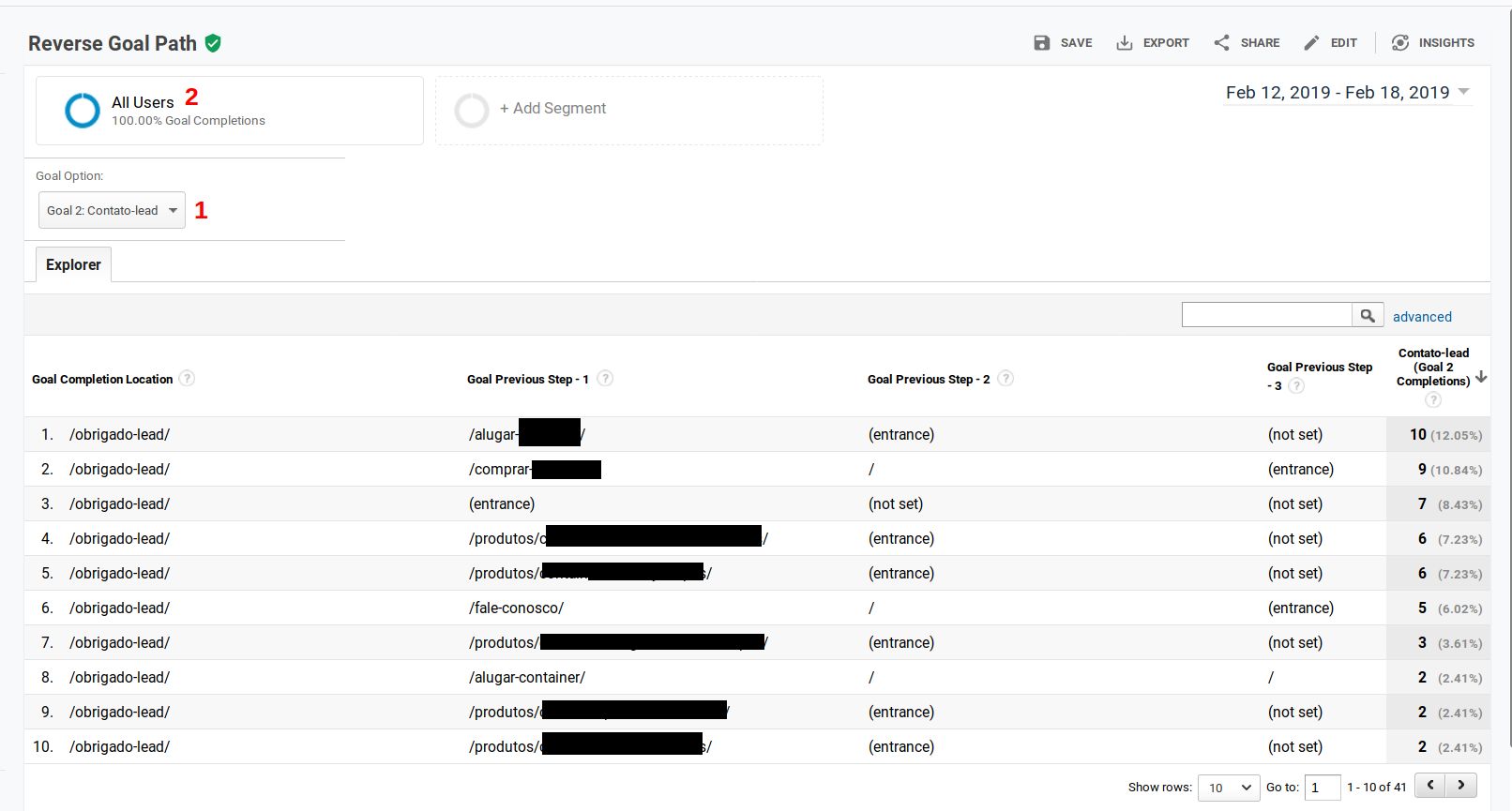
Where number 1 is, you pick which goal to analyze. Where number two is, we pick a segment.
The first column is where the goal was completed - if you're using a conversion page, it will always be that one. The next columns are the previous pages the person went through. Where it says (entrance) is where the person entered the site.
Say you do a lot of content marketing and SEO — if you Segment (where the 2 is in the image) the report by Organic Traffic
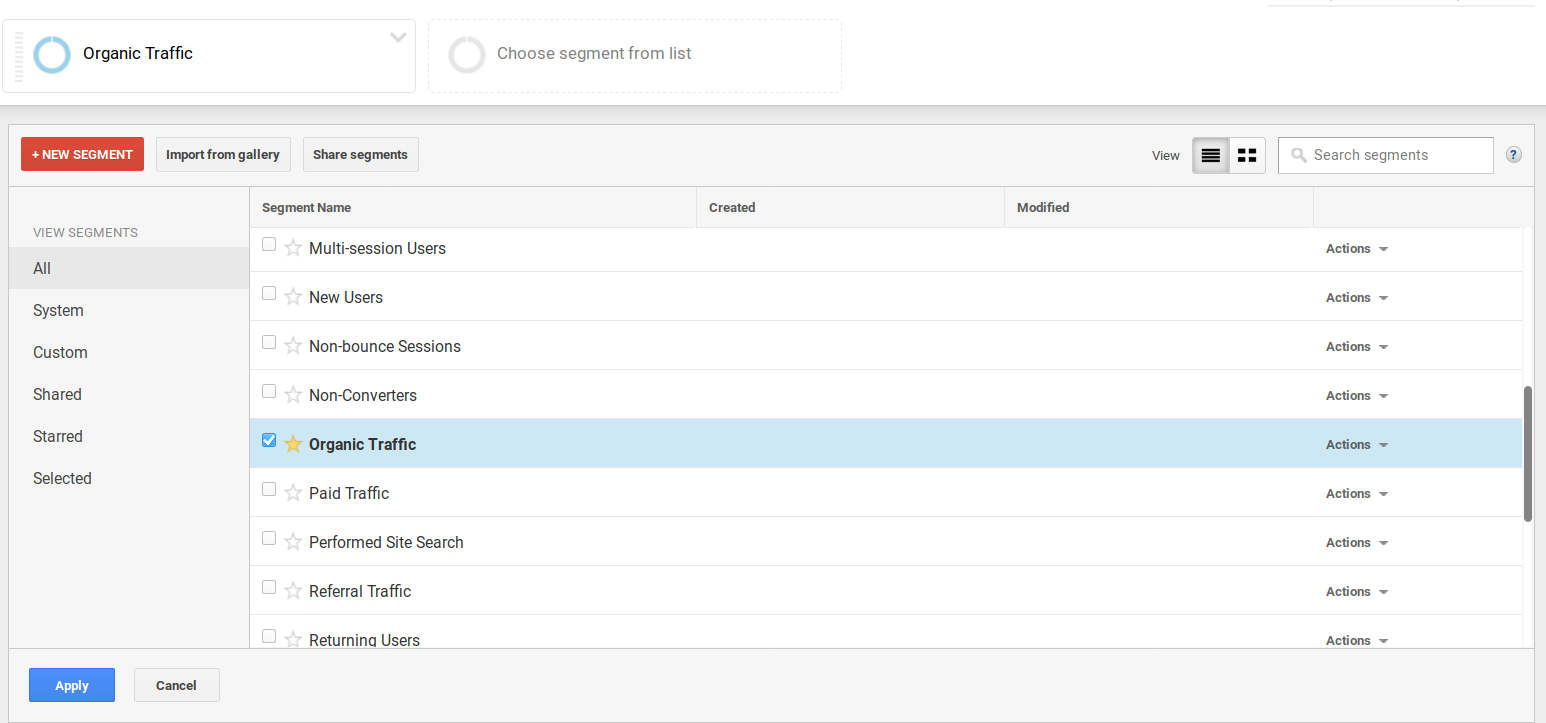
And from there, understand which content discovery path on your site leads to the most conversions. With that, a CRO analysis on the key pages could boost your lead generation significantly.
Multi-Channel Funnels
I believe this one, along with attribution models, are my favorite GA reports.
It's natural for companies that sell and generate leads online to have complex marketing funnels with many channels and touchpoints involved.
One of Analytics' great powers is being able to aggregate all this complex information, pointing out where to focus your optimization and investment efforts.
Shall we get started?
All the reports in this group have the same options at the top:
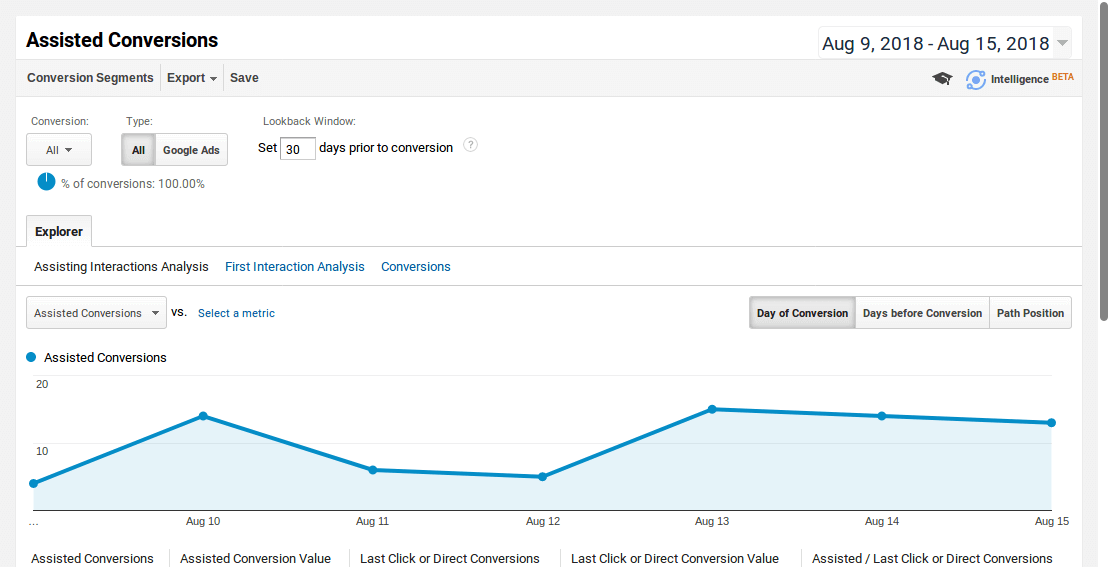
The Conversion Type
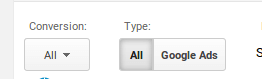
By default, all conversions come selected. So pay attention — if you only want to see a Lead conversion, or a sale, make sure it's the only one selected.
The Lookback Window
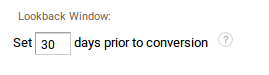
This is the past time period you want to include in the report. You should adjust it according to your customer's buying journey. Usually, for B2B products, 90 days is the best option.
Multi-Channel Funnels Overview
There isn't much going on here… Except for this amazing Venn diagram of your Conversion Acquisition channels.
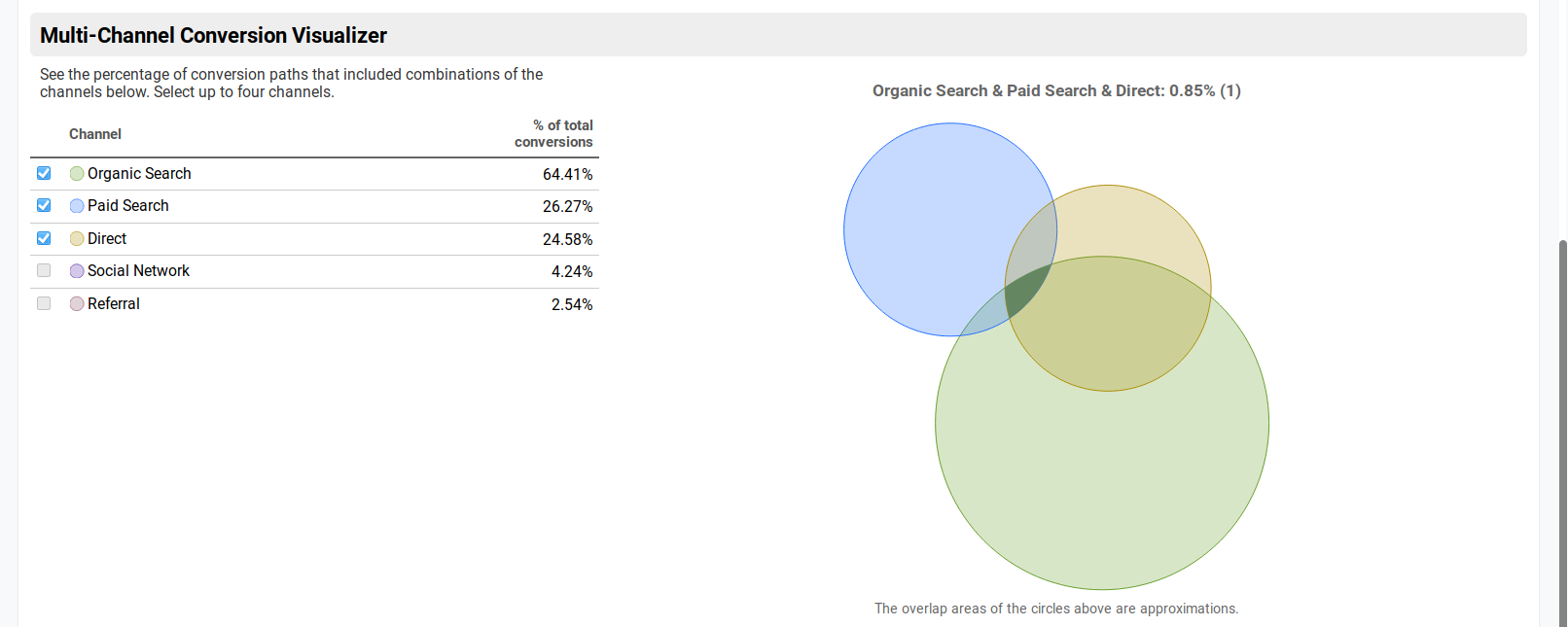
My suggestion here is to set a longer time period so you get more data volume.
You can see from the diagram above that even though the Organic channel matters more in conversion volume, Paid Search and Organic Search share only a small overlapping area.
That means my Paid Search investment is being directed at a different audience than Organic, and that we're generating Leads that wouldn't have been generated without that investment.
Assisted Conversions
An assisted conversion is counted when some dimension (pages, acquisition channels, ads, etc.) measured by Analytics is part of a user's conversion path, but not their final interaction
I wrote a dedicated post about this report, which you can find here.
Attribution Models
My favorite G.A report!
With it, you get a holistic view of your funnel, how long it takes to acquire a customer, and which channels are responsible for which stage of the process.
See how to use it here.